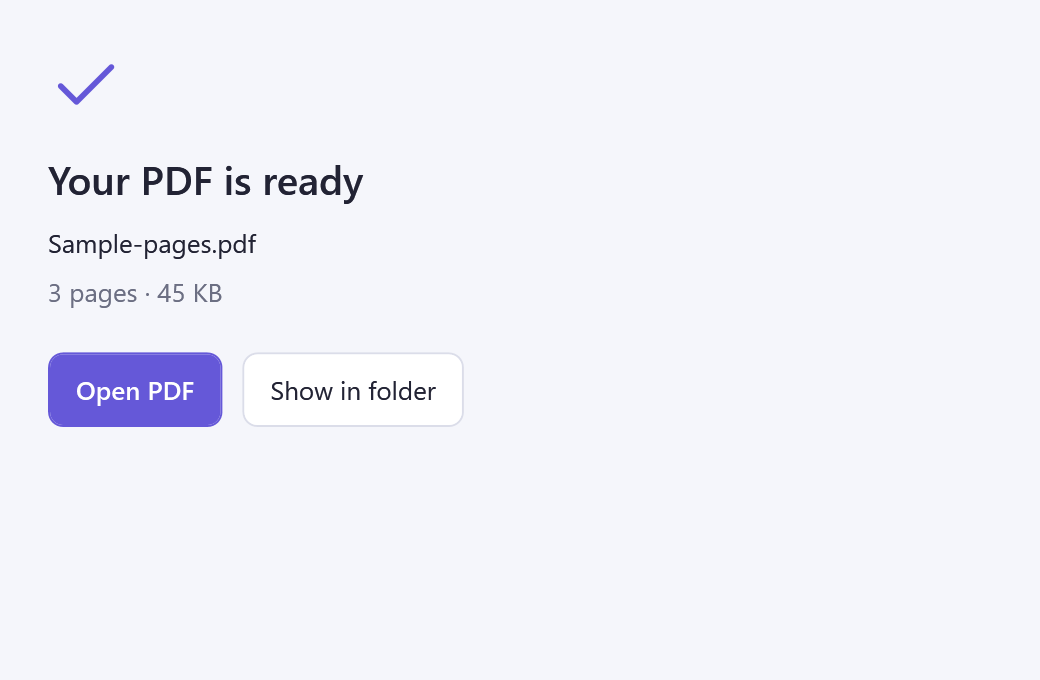
No scanner needed for image files
Turn your JPG pages into one PDF
Use Add images to select your JPG or PNG files. The app also imports TIFF, BMP and GIF. Wait for thumbnails to appear; the image count should match the pages you intend to include.
- Set the order: drag the thumbnails into reading order, or select one and use the up/down arrows. Rotate sideways pages before saving.
- Choose the page layout: A4 or Letter gives a consistent paper size; Original image size preserves each picture's dimensions. Review orientation and margins when using a paper size.
- Review image quality: keep Original / lossless when appropriate, or choose a compressed quality setting for a smaller PDF. Recheck small text after compression.
- Create PDF: choose a new name and destination, then wait for the saved message. Open the PDF to verify page count, order and legibility.
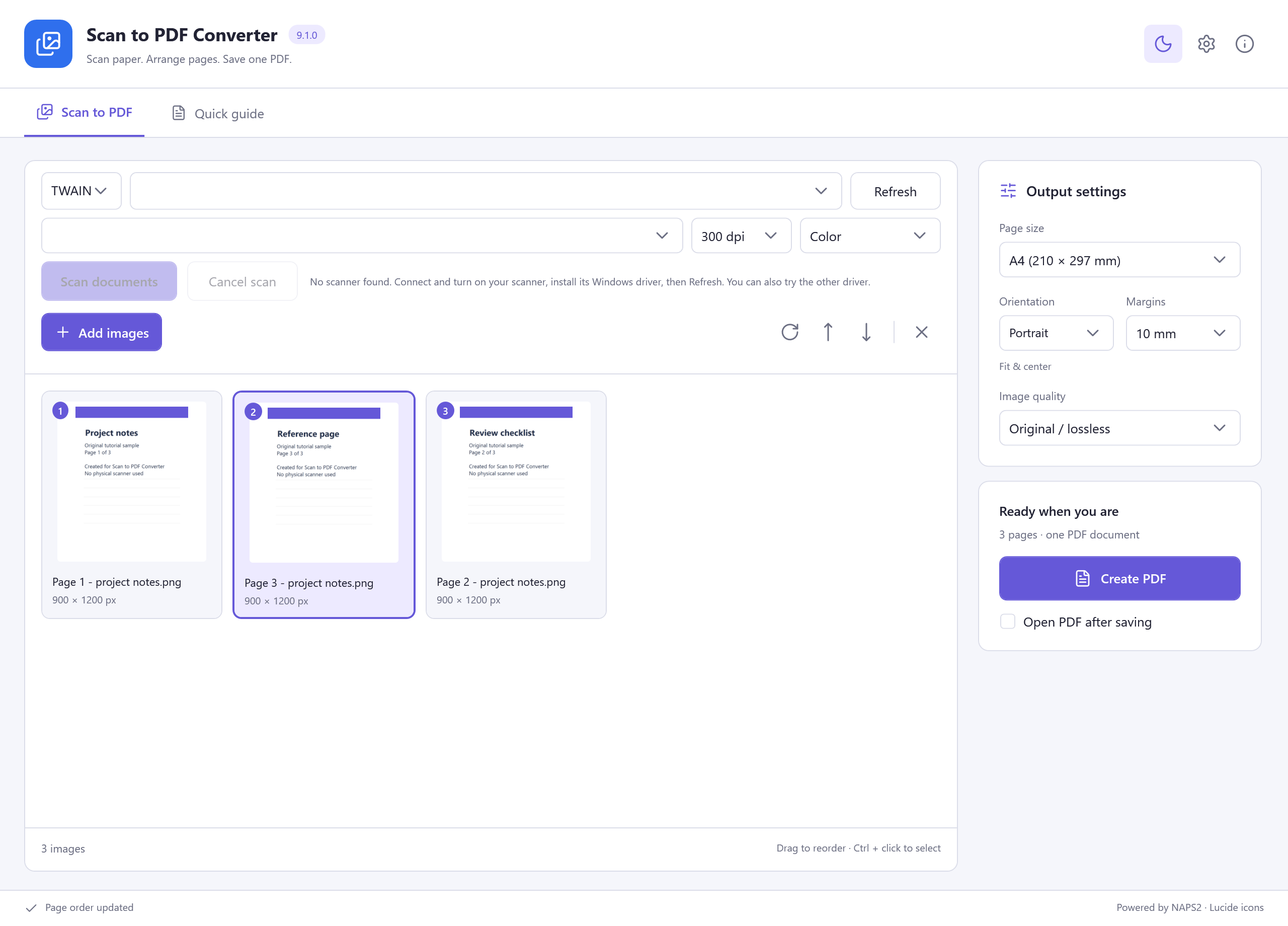
The exported file is a PDF of your images
These three pages were generated for the tutorial, imported and reordered in the actual app, then exported through its PDF engine. They were not physically scanned. Exporting an image to PDF does not automatically turn its text into editable text.