From paper or pictures to one PDF
Choose the scanner. Arrange the pages. Save your PDF.
Use a compatible Windows WIA or TWAIN scanner, or start with existing image files. The screens below are from Scan to PDF Converter 9.1.0.
1. Select the driver and a supported paper source
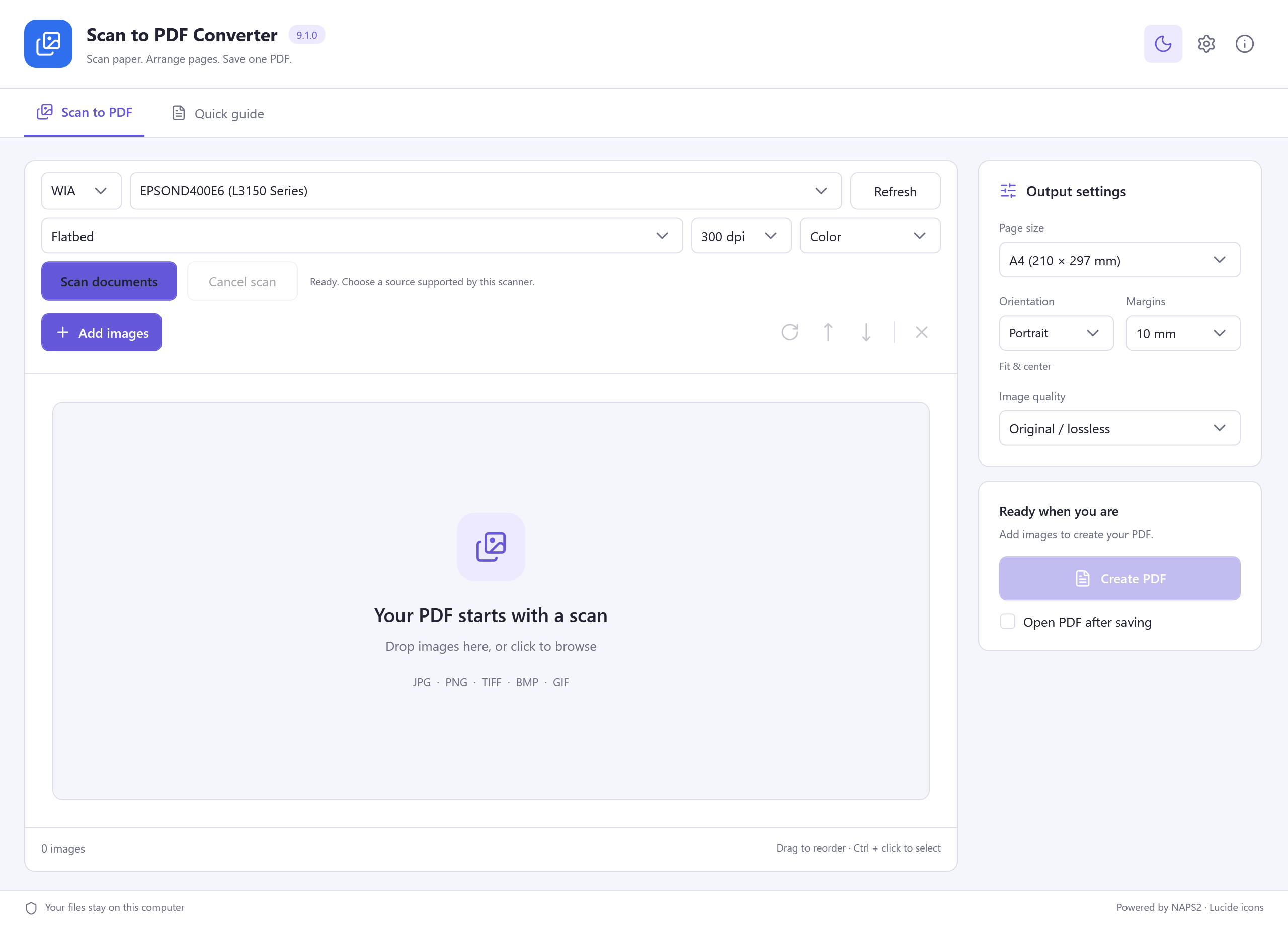
Install your scanner's Windows driver, connect it and turn it on. Select WIA or TWAIN, then choose Refresh and select the device. The paper-source list is populated from the capabilities reported by that device.
- Flatbed: scan the page on the glass.
- Automatic document feeder: feed a stack when the scanner reports an ADF.
- Feeder · both sides: available only when the scanner and driver report duplex support.
Choose an available resolution and Color, Grayscale or Black and white. Select Scan documents to acquire pages. For a flatbed, repeat for additional sheets before creating the PDF.
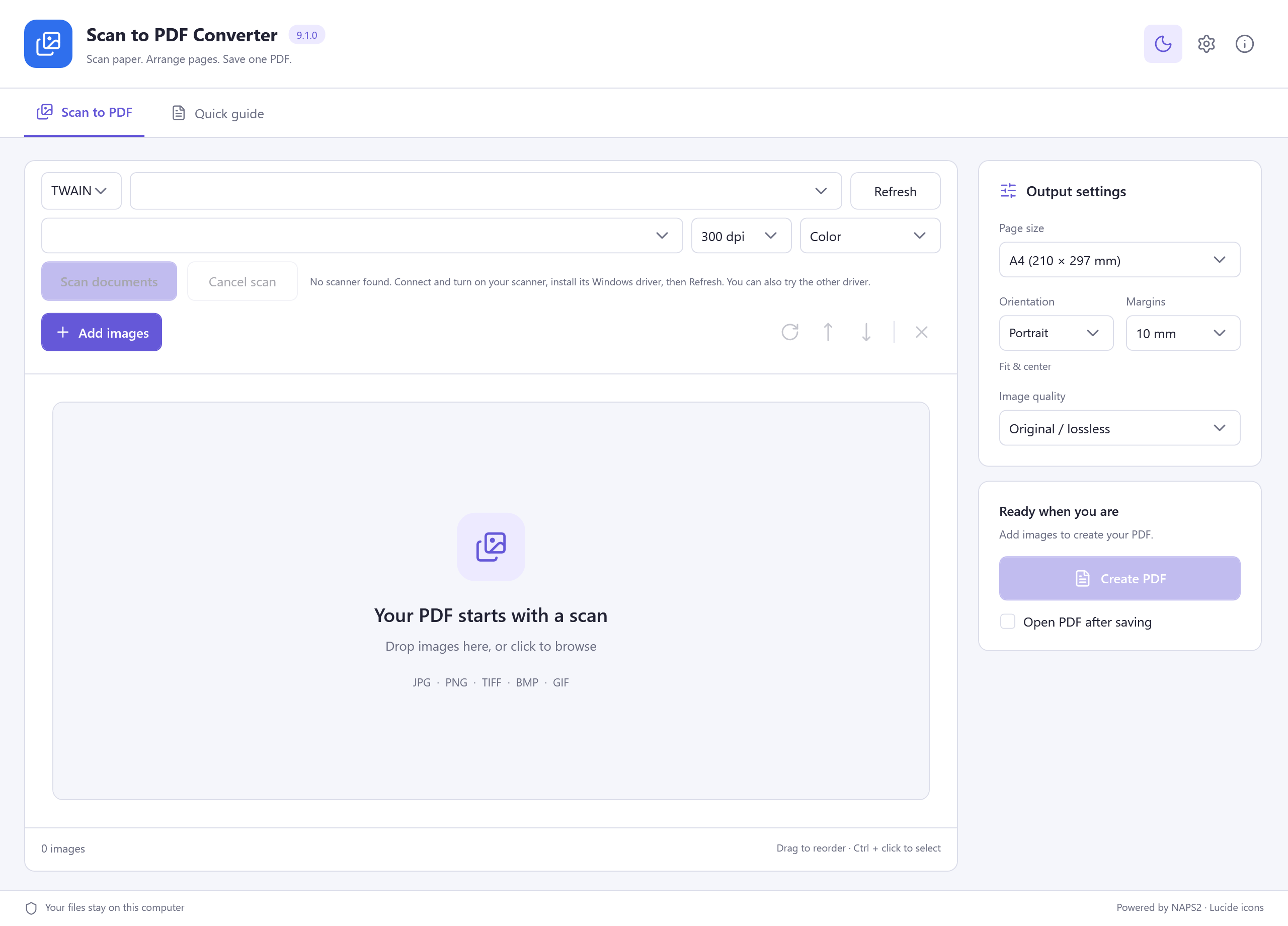
Check power, connection and the installed Windows driver, then Refresh. Try the other driver type. A WIA device can be present even when TWAIN returns no devices. If no device is detected, scanning stays disabled; Add images still works.
See the actual no-device TWAIN screen
2. Arrange scanned pages or import existing images
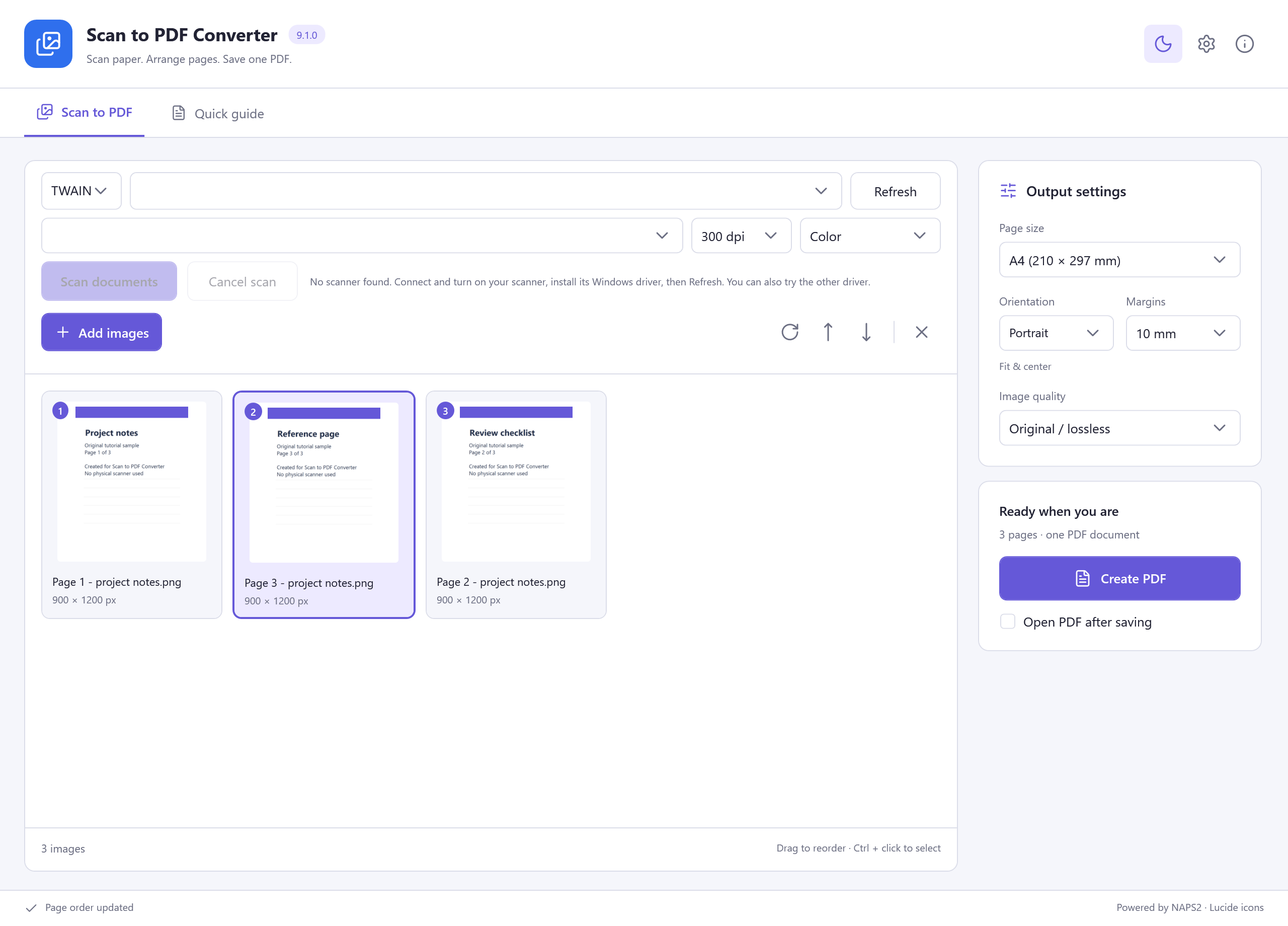
Acquired pages appear as thumbnails. To use existing pictures instead, choose Add images or drop JPG, PNG, TIFF, BMP or GIF files into the window. Image import is a separate route and does not require a scanner.
Drag thumbnails to set the reading order, or select a page and use the up/down buttons. Rotate a selected page with the rotate control; remove unwanted pages before export. Ctrl + click selects several images.
Review the page count and the right-hand Output settings. Choose A4, Letter, A5 or Original image size; then check orientation, margins and image quality. Original image size keeps each image's dimensions rather than fitting every page to A4.
3. Create one PDF and check every page
Select Create PDF, choose a destination and file name, and wait for the saved confirmation. Use Open PDF or Show in folder to find the result. Check page order, orientation, margins and legibility in your PDF reader.
The illustrated result contains three imported sample pages. Scanner selection was verified, but a physical scan, ADF feed and duplex scan were not performed. The saved PDF contains images; this workflow does not claim to recognize them into editable or searchable text.
Download Scan to PDF Converter